Work Center
Work Center is Yeaft's Agent-level durable task system. Use it when a goal must survive beyond one interactive turn, needs role separation or review, may wait for human input, or must recover after a browser disconnect or Agent restart.
Mental model
WorkItem
  ├── contract: goal, acceptance criteria, workDir, attachments, memory policy
  ├── Coordinator conversation
  └── Actions created as needed
└── Run attempts with VP/model/tool snapshots, messages, usage, and evidence- A WorkItem is the durable goal and user-facing conversation owner.
- An Action is one justified unit of work with an objective, approach, expected result, executor/model choice, and workspace policy. Actions support the goal; their count is not a measure of completion.
- A Run is one fenced attempt to execute an Action. Its identity prevents late or stale output from mutating a newer attempt.
- An Event is append-only audit evidence. Current state comes from canonical WorkItem/Action/Run rows, not by replaying UI events.
Work Center is not a Session. It can be created from a Session and keeps that origin link, but its data and lifecycle belong to the selected Agent.
Create a WorkItem
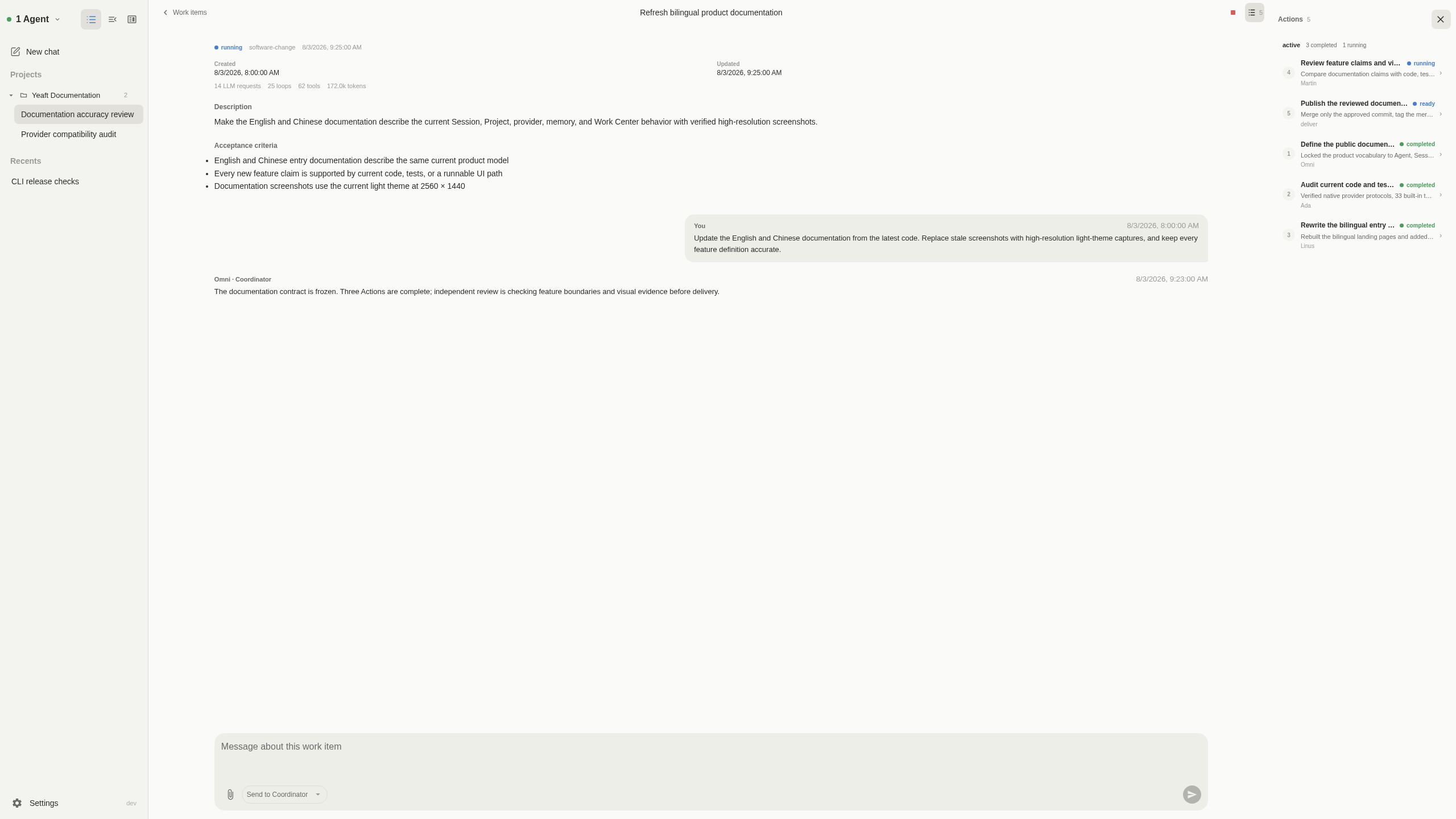
Open the full-screen Work Center using the icon immediately to the left of the Session sidebar collapse button, or from its collapsed icon rail. You can also start from a Yeaft Session's composer. Work Center has its own sidebar: Return to Session goes back to the previous conversation without stopping persistent tasks. Select an Agent, then inspect its running or waiting work items, child Actions, statuses, and executors. Select an item or Action to open its detail directly. This activity summary is independent of board search, filters, and pagination. Disconnected summaries are marked as potentially stale and refreshed on reconnect. Desktop navigation collapses to an icon rail; narrow screens use a dismissible drawer.
The In progress section and each item's child Actions can be expanded or collapsed independently. Child rows include only ready, running, or waiting Actions, newest creation first, with time and executor labels. Older Agents without timestamps fall back to descending Action sequence without inventing a time. Completed or cancelled items leave the activity section. Failed, completed, closed, and superseded Actions no longer occupy the live list but remain available in the full Actions history, also newest first. These display rules do not change execution state or cancel background tasks.
The board keeps In progress / Needs attention / Closed columns with light vertical separators rather than nested column cards. Titles, counts, compact cards, and empty states share consistent alignment. Narrow workspaces switch to single-stage tabs. Search, filters, refresh, and a gear that opens settings directly share the header; narrow screens move search into filters. + New work item sits near the top of the dedicated sidebar, remaining a plus icon in the desktop rail and accessible through the navigation drawer on narrow screens. The create dialog lets you choose an online Agent and defaults to the current selection. Switching keeps the requirement and delivery goal text, but resets the directory, execution timing, and attachments and loads the chosen Agent's defaults and history, rather than carrying another Agent's execution context across.
The Work items / title breadcrumb and shortcuts share one header aligned with the Item reading column. Select Work items to return to the board. Wide screens open Actions beside the Item by default. The close icon in the Actions header closes only that pane, not Work Center. Action detail reuses the same header and full-height, independently scrolling pane. Narrow screens use single-pane drilldown and preserve the conversation draft on return. Explicitly closing Actions is also reflected in the current page URL.
On desktop, drag the thin divider between the conversation and Actions to resize both panes. It highlights on hover, drag, or keyboard focus, and the browser remembers the width. Double-click to reset it, or focus it with Tab and use arrow keys to resize, Shift + arrow keys for larger steps, and Home to reset. The Actions toggle stays at the right edge of the conversation header, beside its pane. Headings and body text use compact reading styles. Narrow screens hide the divider.
In Settings → General → Work Center entry, a switch and Enabled / Disabled label show the current preference. This only controls the browser entry; it does not start or stop Agent background tasks. You can still open the page and return when no compatible Agent is online.
For a new WorkItem, provide:
- the requirement or goal;
- the working directory;
- optional files (supported image, PDF, or text-based attachments);
- the delivery target (or ask before delivery);
- whether execution should start immediately.
The create entry uses the same borderless style as New chat, and the Agent picker uses a rounded, theme-aware menu. Delivery target occupies one row: choose a built-in target, or choose Custom and type beside it. Previously used custom goals are available in the same menu, scoped to the selected Agent. Custom text does not grant merge or release permission. Eligible completed-work summaries are enabled by default without a checkbox; workspace and ownership boundaries remain unchanged. Legacy Dream/H2-AMS memory is not recalled.
The title is a short display label, separate from the original requirement or goal. An explicitly supplied title is preserved. When it is omitted, the existing initial Coordinator decision generates one without another model call; retries keep the original goal unchanged, and older WorkItems keep their stored titles. New items retain the creation-time requirement independently of later user-approved goal refinements. Older items use the goal retained at upgrade as their requirement; earlier versions did not save a separate original. Until coordination runs, a compact fallback label is displayed. An omitted generated title uses a deterministic fallback instead of failing the task.
When created from a Session, the runtime stamps the source Session; model input cannot replace that identity.
Scheduled and recurring execution
Choose Start now, Save draft, or Schedule under When to run. Scheduling uses a theme-aware inline calendar and a 24-hour time field instead of the operating system's date popup. Select a time zone to preview the first run in that zone.
- Once starts this work item when it is due.
- Every day / Weekdays / Every week / Every month saves a separate schedule. Each occurrence creates a new work item with its own conversation, Actions, results, and usage. Weekdays means Monday–Friday, not a holiday calendar. Weekly schedules support multiple days; monthly schedules support days 1–31, using the last day in shorter months.
- End conditions: repeat indefinitely, through a selected date (end of day in the chosen zone), or for 1–1,000 generated work items. The count measures items created, not successful completions.
Schedule details show status, the next run and its time zone, and the generated count, with a link to the latest execution. Each execution links back to its source plan. Pausing stops future occurrences, not work already in progress. Resuming a repeating schedule skips paused times. Cancelling a plan does not cancel existing executions; finished or cancelled plans must be recreated.
Scheduling runs on the Agent, independently of the browser. After Agent downtime, missed times are coalesced into at most the latest due occurrence, never a backlog of all missed runs. If a previous execution is still unfinished, that occurrence is skipped to prevent overlap. Nonexistent daylight-saving times are skipped; repeated wall times run only once. Each execution consumes resources, so confirm the goal and frequency before enabling repetition.
Older Agents that do not advertise recurring schedules keep one-time scheduling with repetition disabled. An overdue paused one-time schedule needs a new future time to resume; in the current UI, recreate that one-time schedule.
Planning and execution
New WorkItems use dynamic coordination. If no separate acceptance criteria are supplied, the user goal itself becomes the minimum acceptance condition. The Coordinator inspects current facts and creates only the next necessary Actions; automatic advancement cannot change the goal or criteria. Contract changes require explicit user refinement. There is no mandatory triage → implement → test → review → deliver sequence. A small research task may need one Action; code changes may need separate implementation, verification, or integration when the evidence and risks justify them.
Each Run uses the existing Yeaft engine and submits a structured outcome. The Coordinator then decides whether more work, a human answer, or completion is justified. sourceActionIds records where an Action's input results came from; it is not a prebuilt dependency graph.
Goal progress, not activity counts
With an Agent that provides goalProgress, the WorkItem detail shows verified acceptance criteria / total criteria, the remaining count, each criterion's verified/failed/not-yet-verified state, blockers, and a separate delivery state. Unverified and failed rows are the remaining work. The Goals tab shows the criteria and delivery evidence; Progress summarizes verified criteria, current Actions, and blockers. Expand Evidence Runs to see the source Action number and objective; select it to open the Action in the right pane (a detail panel on narrow screens). Attempt records in the resource budget, blockers, and source Action references use the same navigation. If an older Agent or a missing record cannot establish a reliable association, the UI shows Source Action unavailable rather than guessing; the original identity remains in the hover hint. The browser displays the Agent's evidence projection; it does not infer completion from completed Actions, elapsed time, or model estimates.
All criteria being verified is not by itself delivery. Current canonical Run evidence must support both the criteria and the selected delivery target. Stale or contradictory evidence can leave a criterion unverified or failed. Older Agents without this projection keep the plain acceptance list rather than showing an invented percentage.
Item details have two independent areas: Info above, Conversation below. Info opens on Requirement (the original request, attachments, and basic metadata), with parallel Progress / Outputs / Goals / Usage tabs. Outputs use compact title/reference rows; Usage contains resource budgets and controls. Long Info content scrolls within its panel without pushing the conversation composer out of view. Switching tabs preserves conversation and budget-edit drafts; opening another Item returns to Requirement. Tabs support arrow keys, Home, and End. Failure/waiting notices and a link to resource stop details remain outside the tabs. Actions opens execution details alongside the Item on wide screens and can be closed; its execution count is not a measure of goal progress.
Work Center messages hide the unconnected per-message debug button. Completed or cancelled items also hide unavailable quote and edit-as-new controls, while copy and export remain available. Ordinary Session debug and quote controls are unchanged.
Choose the completion boundary
| Delivery target | What is delivered |
|---|---|
Response (response) | A substantive answer supported by canonical Run evidence and acceptance checks, such as an explanation, investigation, or recommendation. It does not require a file, PR, or commit. |
Workspace files (workspace_files) | Canonical file outputs in the working directory. |
Open a pull request (pull_request) | Canonical PR output, subject to the repository's review policy. |
Merge an approved pull request (merge) | Canonical commit output, subject to approval and merge policy. |
| Ask me before delivery | The delivery boundary must be confirmed before completion. |
When the Agent supplies finalResult.responses, Delivered response shows the retained answer and expandable Run source/evidence. An ordinary conversation reply or an executor saying “done” is not a delivered response. Selecting a code target never grants permission to bypass review, publish, deploy, or change access controls.
Legacy compatibility
Older WorkItems can still use workflow snapshots and dependency/final-gate rules. Those records remain readable; they do not define the new task-first interaction. This UI requires the corresponding Agent projections for evidence progress and response delivery. Rich evidence drilldown and any broader autonomous capabilities in design documents are not implied by these fields.
Resource budget and explicit recovery
WorkItems with resource control show Resource budget in the Usage tab: lifetime requests and budgeted tokens consumed / limit, a localized stop reason, and expandable Usage breakdown and limits for Coordinator and Actions separately. Reported tokens are known usage. Reservations include in-flight and unknown usage, are already included in budgeted tokens, and must not be added again. Unknown usage is not free.
Default limits are 200 lifetime requests, 2,000,000 lifetime tokens, 40 requests per Run, 3 lifetime attempts per Action, and 3 cumulative Coordinator failures. Action attempts also respect the Action’s original limit plus explicit extensions; the detail lists used / effective limits. Requests include retries and auxiliary calls. Cancel, restart, a successful turn, or a new generation does not reset cumulative consumption.
Token admission uses an estimate of input plus maximum output before dispatch, replaced by complete reported usage when available. Unknown or partial results retain conservative occupancy. This is estimated admission, not a hard dollar ceiling or billing guarantee: actual usage may exceed the estimate, and already dispatched requests cannot be undone. Incomplete historical usage cannot reconstruct a bill.
To continue after a resource stop:
- Review the reason and limits. Choose Extend budget if more resources are needed.
- Enter positive safe-integer additions, leaving unchanged fields blank. Review and choose Confirm budget addition. Adding Action attempts applies to all current and future Actions in this WorkItem.
- Extension does not resume execution, clear the stop reason, or reset usage. Choose Resume work item separately when ready. A Run request-limit stop can resume with a new Run without increasing its per-Run limit.
Mutations use the latest execution-control revision, distinct from the goal revision. If an error/conflict occurs, the UI refreshes state and requires a new explicit confirmation; it never automatically retries the mutation. Failed refreshes and reconnects keep changes disabled until refreshed. No model instruction, retry, watcher toggle, or goal edit can grant extra resources or clear a resource stop. Older Agents without this projection keep the existing usage display.
Concurrency and workspace policy
Work Center can run independent ready Actions concurrently up to maxConcurrentActions (default 3, configurable from 1 to 12). Workspace conflicts, repository state, and legacy dependencies still constrain actual concurrency.
| Workspace mode | Meaning |
|---|---|
read | Planner/reviewer contract for an Action that will not mutate files, Git state, services, or external systems. It is not a general OS sandbox. |
shared | Execute against the canonical working directory; mutating shared work is serialized where required. |
isolated-write | Execute independent Git changes in a dedicated worktree. |
integrate | Combine isolated-write results from declared sources; conflicts stop for explicit handling. |
Isolated changes need integration before their results can support delivery in the canonical workspace. Dynamic coordination creates this work when needed. Legacy AI-planned graphs retain their single integration-gate rule.
VP and model assignment
An Action can use:
auto: choose a VP by Action capability;pool: choose from explicit candidates;fixed: use one configured VP.
Review can require separation from implement/test roles. If no eligible VP or configured model exists, the WorkItem moves to attention instead of silently falling back to an unrelated VP or model.
Model policy can inherit the runtime choice, select primary/fast, or name a specific configured model. Effort is resolved per Action and frozen into the Run snapshot.
Coordinator and Action conversations
The main WorkItem conversation targets the Coordinator. Use it to:
- ask for current status or an explanation;
- guide one or more unfinished Actions;
- change the goal or acceptance criteria and request a replan;
- recover from a Coordinator-visible problem.
The Coordinator has no file, shell, or external side-effect tools. Its structured decisions coordinate Actions, update the contract, request human input, or complete the WorkItem when evidence satisfies the contract.
Waiting prompts offer Reply to Coordinator or Reply to this Action. Clicking selects the recipient and focuses the conversation composer; it neither sends nor approves anything. Human questions in Action details also offer a direct reply button. Merely opening an Action never redirects a draft, and you can still select the target manually.
Waiting/failed Action recovery is fenced by Action ID, revision, generation, and current Run state. Dynamic Items accept replies to any eligible Action, not just a single current Action. A confirmed stale-target rejection preserves text and attachments, unlocks the request, and refreshes details for you to check before resending. Unknown delivery after a timeout or disconnect retains the original request identity to prevent duplicate application. The Action detail view shows its continuous conversation. Retained execution data is loaded on demand rather than mixed into the main goal view.
Outcomes and recovery
A Run ends as one of:
completedwith concrete evidence and required acceptance checks;waitingwith a human question/reason;retryablewhen another attempt is safe and allowed;failedwhen automatic continuation is unsafe or exhausted.
Stopping or cancelling closes active execution fences; late tool/model output cannot advance the WorkItem. On Agent restart, stale running Runs become interrupted. Safe Actions may return to ready within their attempt policy; uncertain external side effects require attention instead of blind retry.
Memory reuse
With reuseMemory=true, Work Center can reuse structured summary/evidence from completed WorkItems with the same canonical workspace key. A WorkItem may also carry explicitly captured, bounded source Session context.
Legacy Dream/H2-AMS indexes and workspace transcript recall are not read or injected.
Reused completed-work context is token-bounded reference material and cannot override the WorkItem contract, Action instruction, tool policy, or completion protocol. reuseMemory=false disables this reuse.
Attachments and evidence
Attachments are persisted with the WorkItem and treated as untrusted reference data. The runtime checks type, size, path stability, and owner boundaries before injection or download.
Execution evidence can include summaries, acceptance checks, file/test references, request usage, loop timing, and retained tool inputs/outputs. The browser loads detailed execution records on demand; large records may be bounded or summarized.
What Work Center does not promise
- It is not an unrestricted autonomous deployment service.
readworkspace policy is not a kernel-level sandbox.- A completed Action is not enough to mark a WorkItem done; the goal criteria and delivery boundary must be supported by current evidence (legacy workflows also retain their final gate).
- A
turn_endevent is not an Action completion. The executor must submit the structured outcome contract. - Reused completed-work context never grants authority over the current contract or safety rules.
- Sessions and WorkItems do not share one transcript.
Related pages
- Yeaft Sessions and Projects
- Native engine architecture
- Provider and model configuration
- Internal Work Center domain contract
Workspace and output files
Open a Work Item and use the Workbench icon in the top-right header to browse its workspace. File outputs open directly in the shared Files viewer/editor; Git and Terminal reuse the same Workbench components as chat. The route belongs to the selected Agent and Work Item, not the Session you came from. Closing Work Center leaves that Session’s workspace and panel state unchanged.
Workbench requires updated Server and Agent versions and a Work Item workspace. The folder picker is unavailable on this route: Files, Git and the initial Terminal directory use the Work Item workspace. Git is available only when the workspace is the repository root, so repository-wide operations cannot silently include files outside the Work Item. A subfolder workspace can still use Files and Terminal. Local output references outside that directory remain plain text. HTTP(S) links open separately. Browser Runtime is not available for Work Items. File operations and Terminal retain the existing Workbench permissions; this is not an execution sandbox.